Dev Terminal
Technical resume template · Single-column classic layout
Dev Terminal speaks a developer's language: monospace header, green terminal accent and two-column tech-stack grid in a clean single-column layout.
Designed for
- Software Engineers
- Developers
- Engineers
Open it in the resume builder, replace the sample text, and export when you are ready. There is no watermark and no signup.
Key features of the Dev Terminal template
Full-width single reading column with horizontal section dividers and traditional reverse-chronological flow. Standard headings and selectable text help readers follow your experience. After exporting, check that your contact details, job titles and dates copy in the intended order; extraction can differ between systems.
Monospace terminal header with green accent
Two-column tech-stack grid
Project-first structure
Command-prompt inspired styling
Standard headings, selectable text
Instant PDF export
Layout & formatting specifications
- Template name
- Dev Terminal
- Design style
- Technical
- Column structure
- Single-column classic
- Page dimensions
- A4 & US Letter
- Default color palette
- #0f172a#22c55e
- ATS text layer
- Selectable text, standard headings
- Download formats
- PDF, Word (DOCX), Plain Text (TXT)
Included resume sections
The Dev Terminal template comes pre-configured with the sections below. Inside the builder, you can rename headings, reorder blocks, or hide any section you do not need.
- Contact Header
- Professional Summary
- Work Experience
- Education
- Core Skills
- Certifications & Projects
Ready to customize in the builder
Click Use this template to open the Dev Terminal layout directly in the resume builder, enter your own experience and skills, and export a watermark-free PDF, DOCX, or TXT file.
Who the Dev Terminal template is built for
Engineers who like a technical document and often submit PDFs to developer-heavy teams.
How to get the most from the Dev Terminal layout
- The terminal styling is confined to the header and section furniture; keep the body text in a normal font so the page is still pleasant to read on paper.
- The two-column stack grid works as a legend if you group by purpose — languages, infrastructure, data — rather than as one alphabetical dump.
- Project-first structure suits engineers who build in public: give each project a one-line purpose and a working link.
How to customize the Dev Terminal template
- 1
Add your contact details and summary
Open Dev Terminal in the builder and enter your contact details, target job title, and a concise 2-3 sentence summary aligned with software engineers postings.
- 2
Prioritize measurable experience bullets
List recent roles in reverse-chronological order. Lead each bullet with a concrete action and outcome, scope, revenue, latency, patient load, or delivery metrics.
- 3
Align skills with the job description
Use the vacancy's names for skills and tools where they accurately describe your experience. Add evidence in your work history; repeating a term alone does not establish competence or guarantee a search match.
- 4
Verify reading order and export
Preview page breaks, then export the file type requested by the employer. Copy its text into a plain-text editor to check the order. The ATS Scanner provides a local checklist; Job Match compares your text with a specific posting.
Similar resume templates
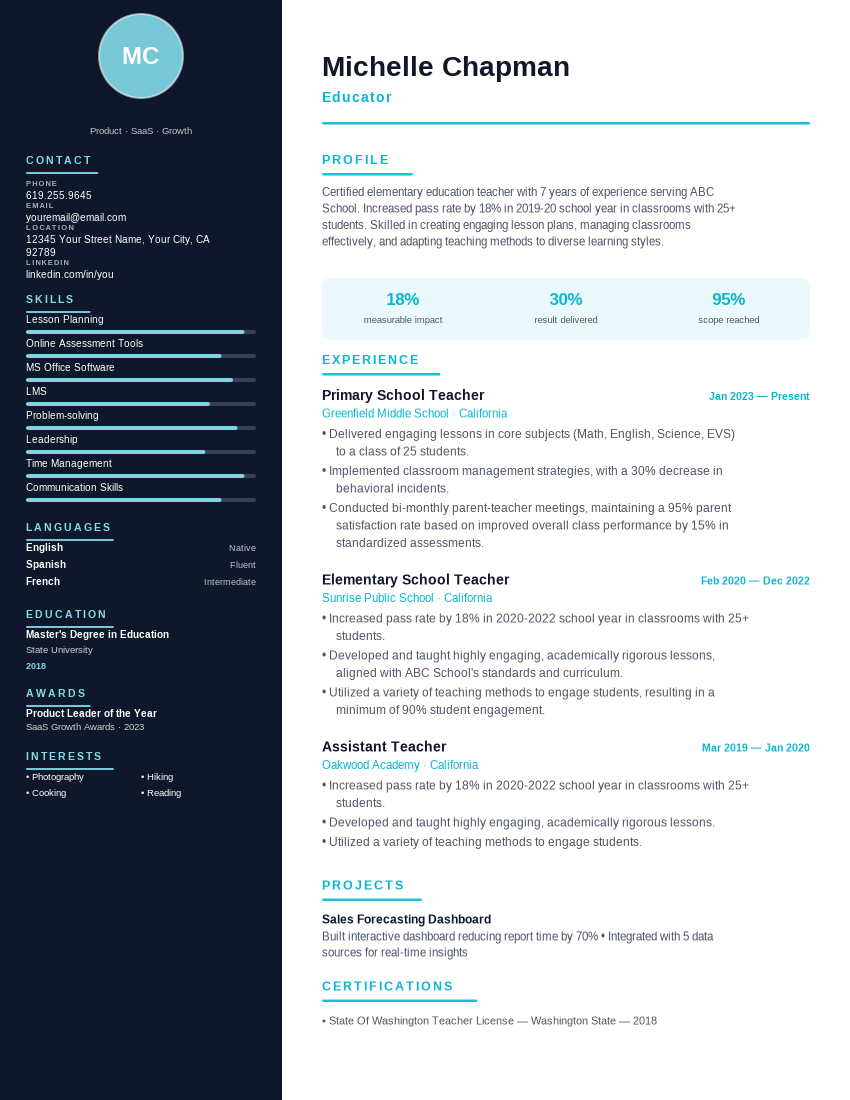
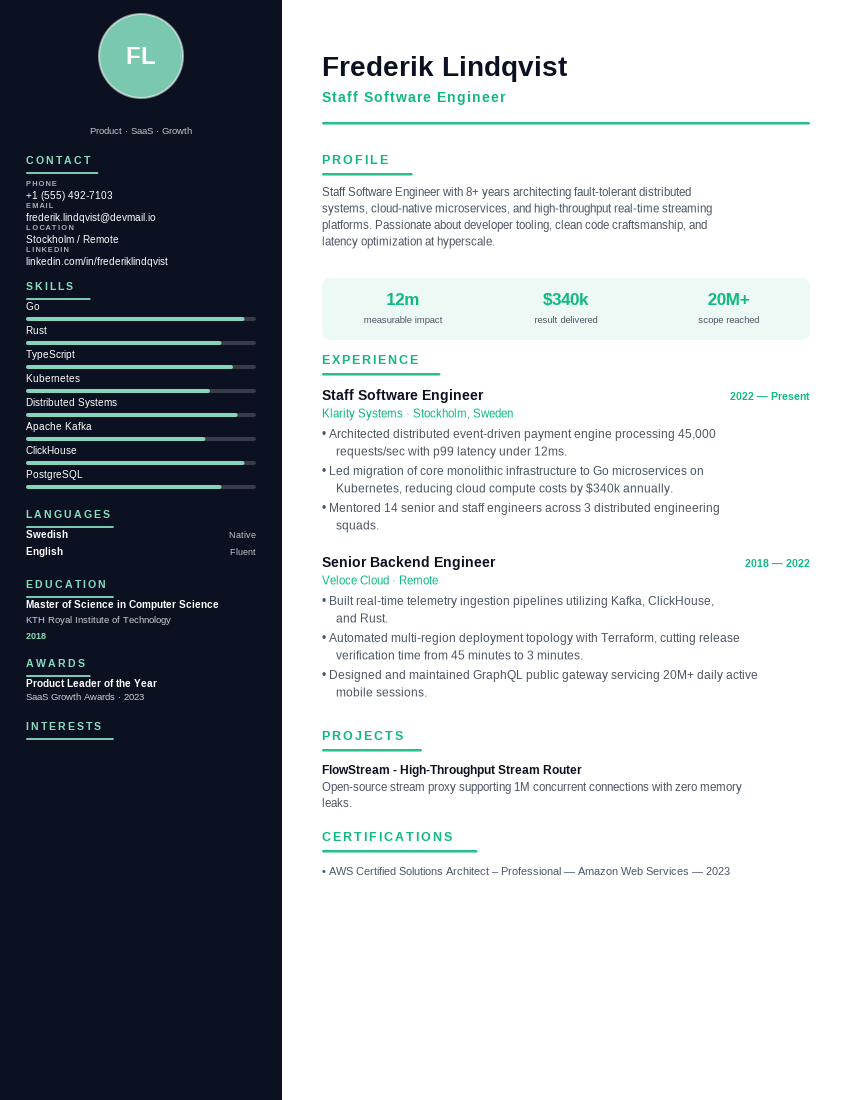
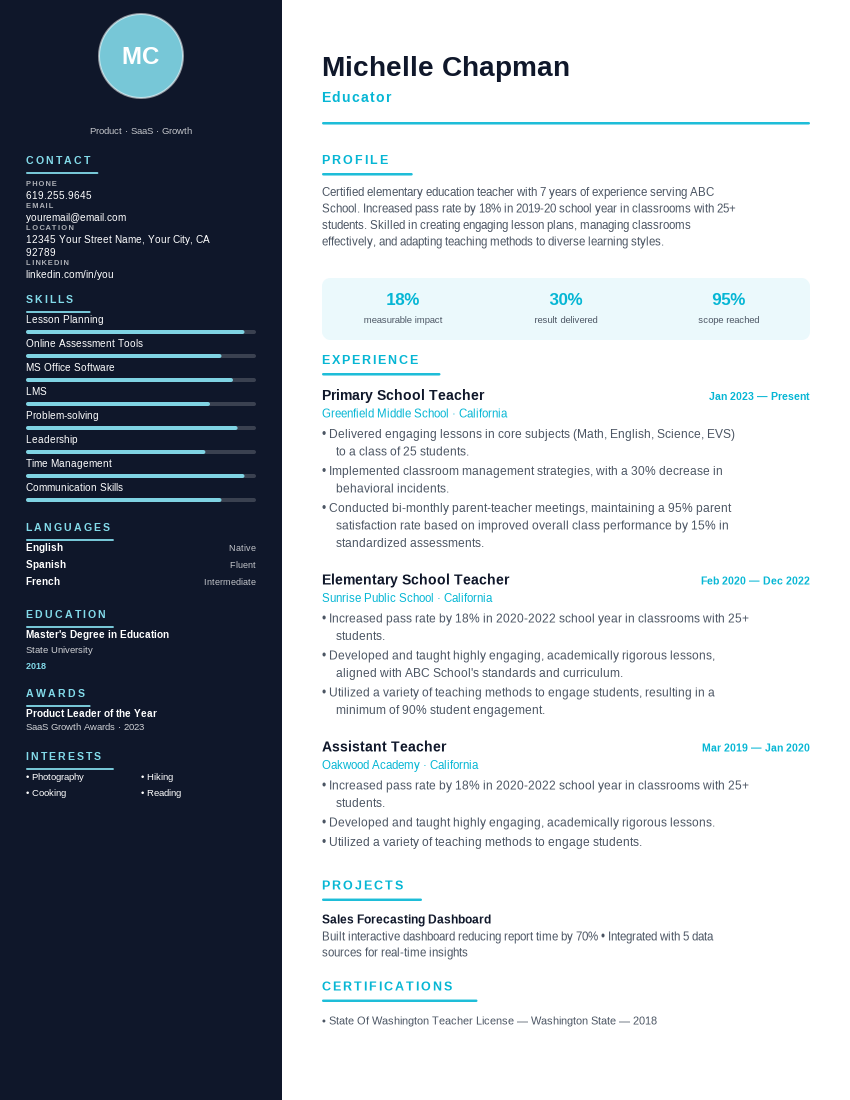
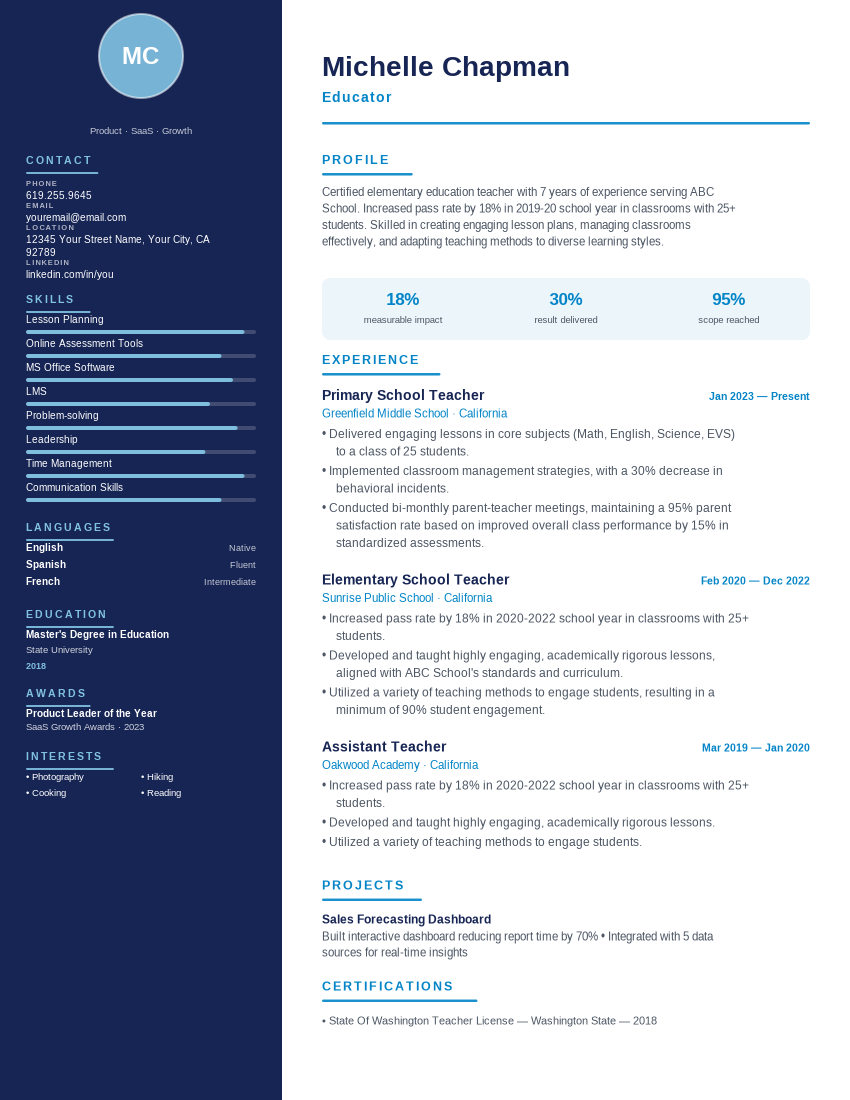
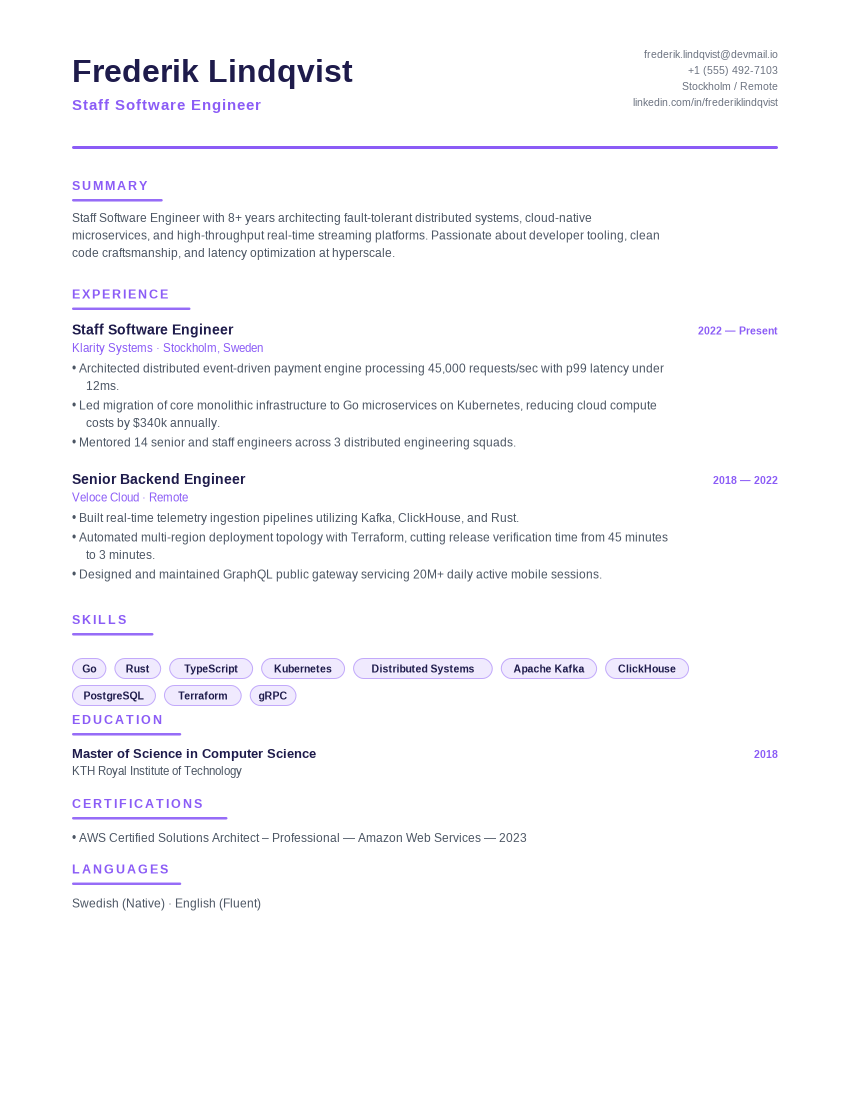
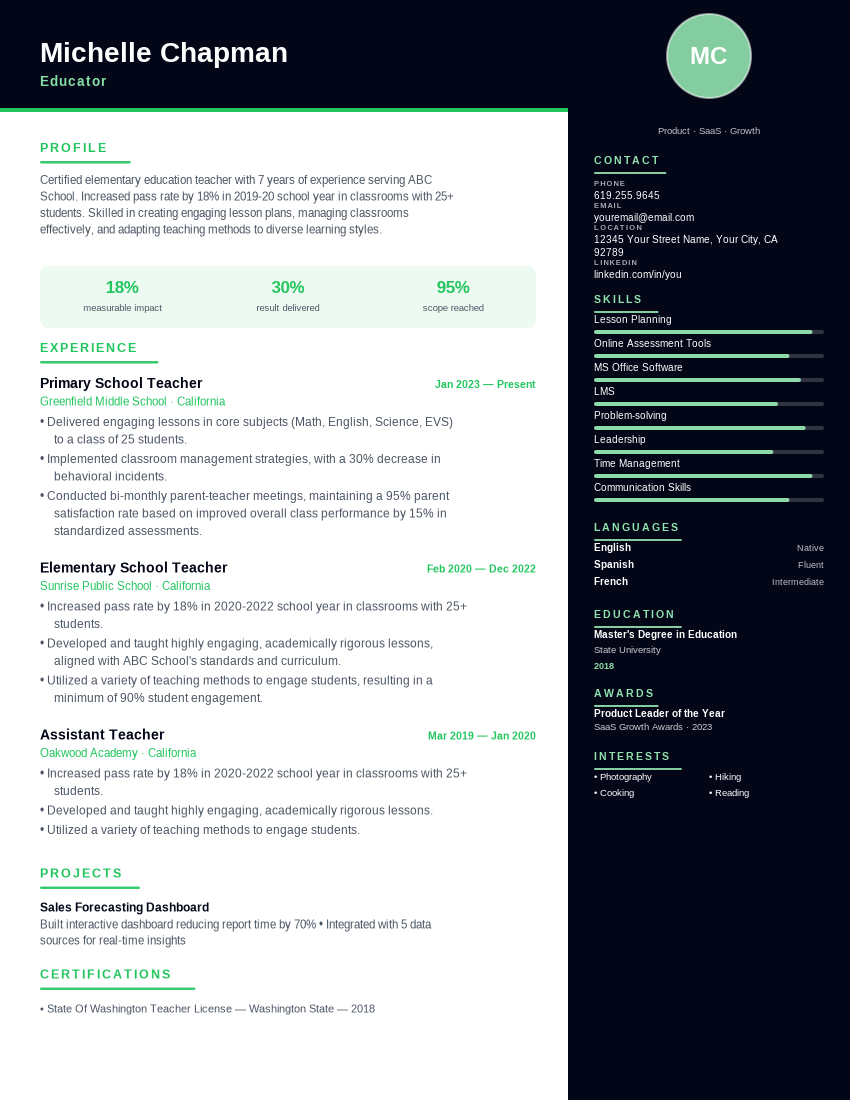
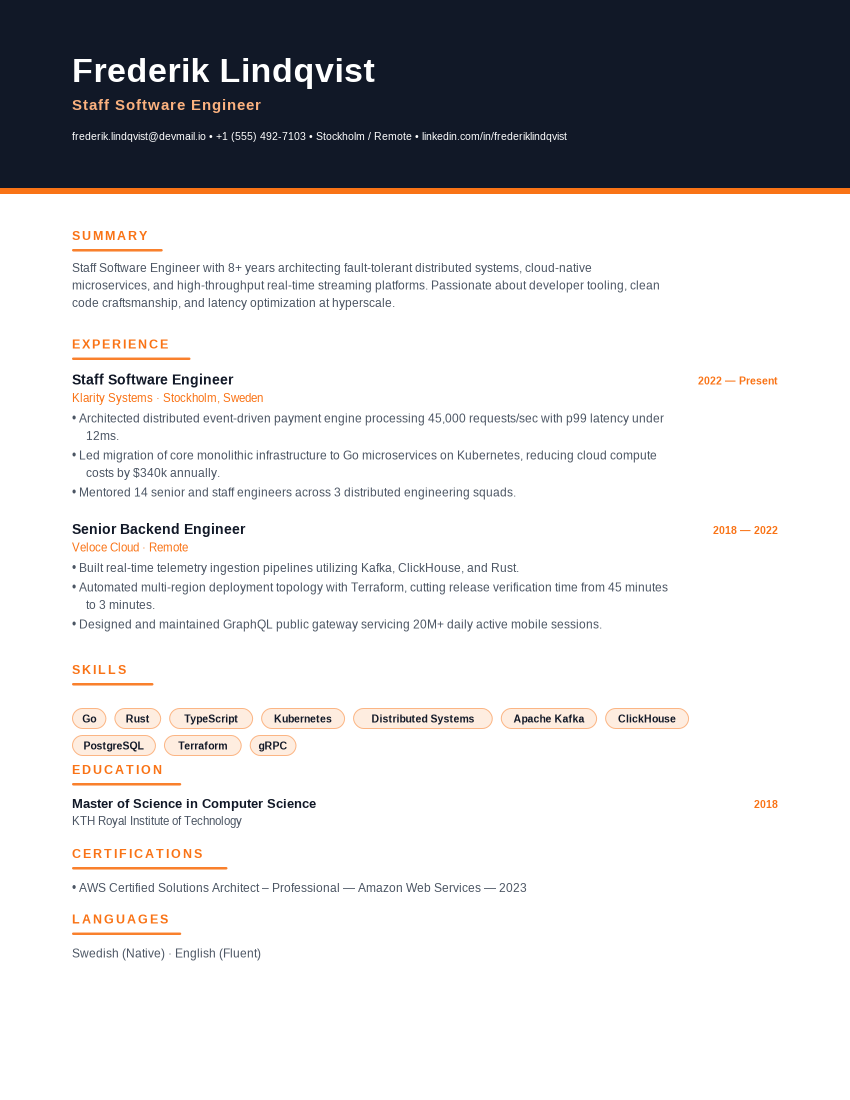
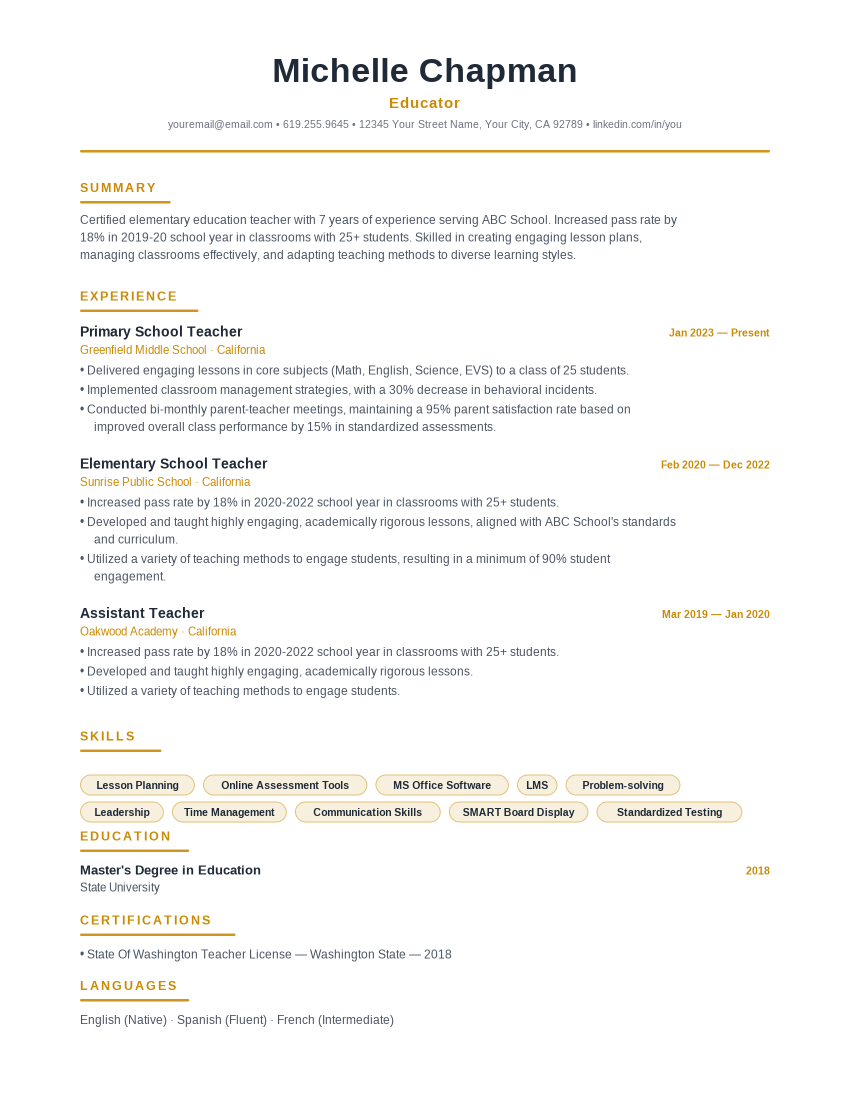
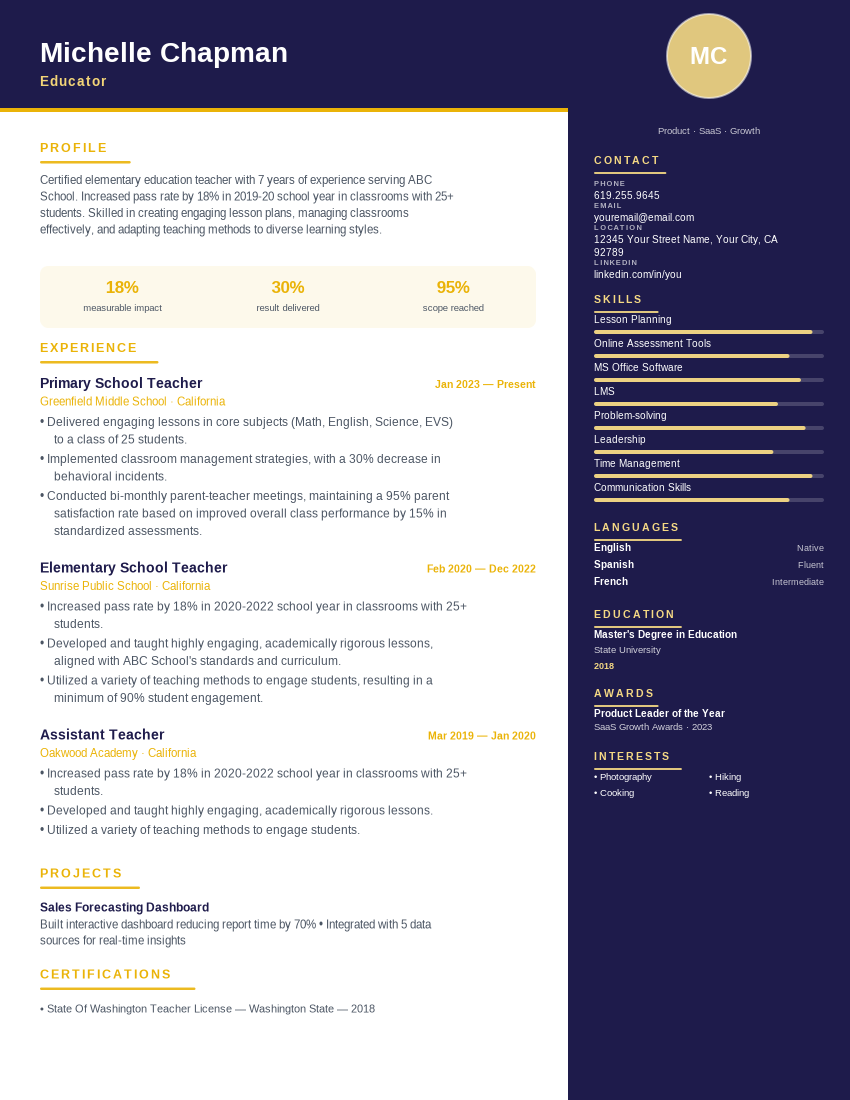
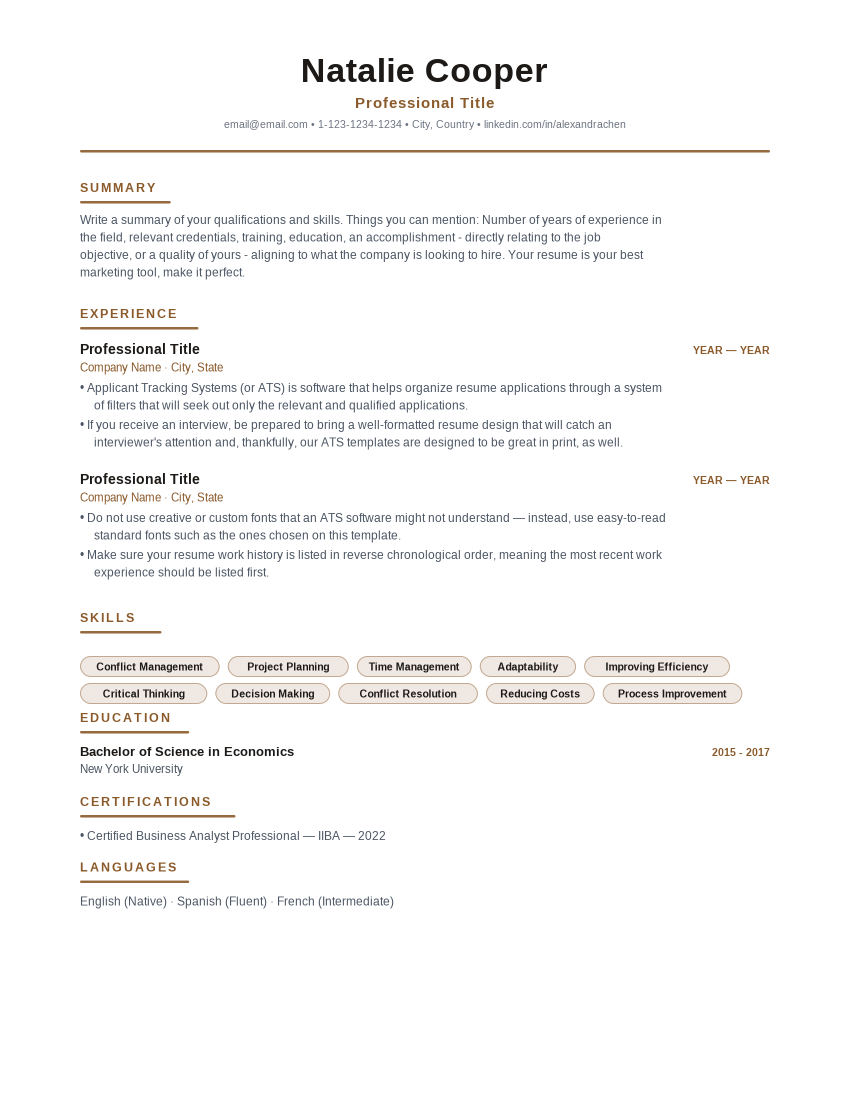
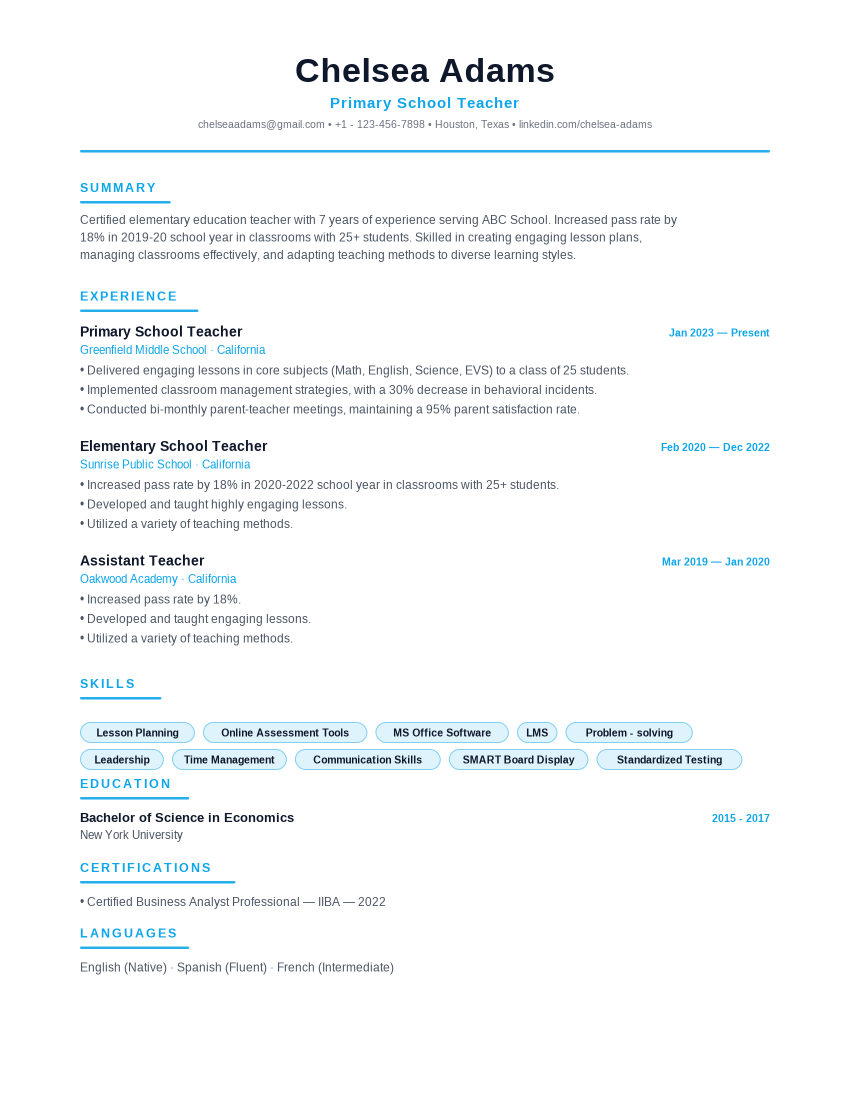
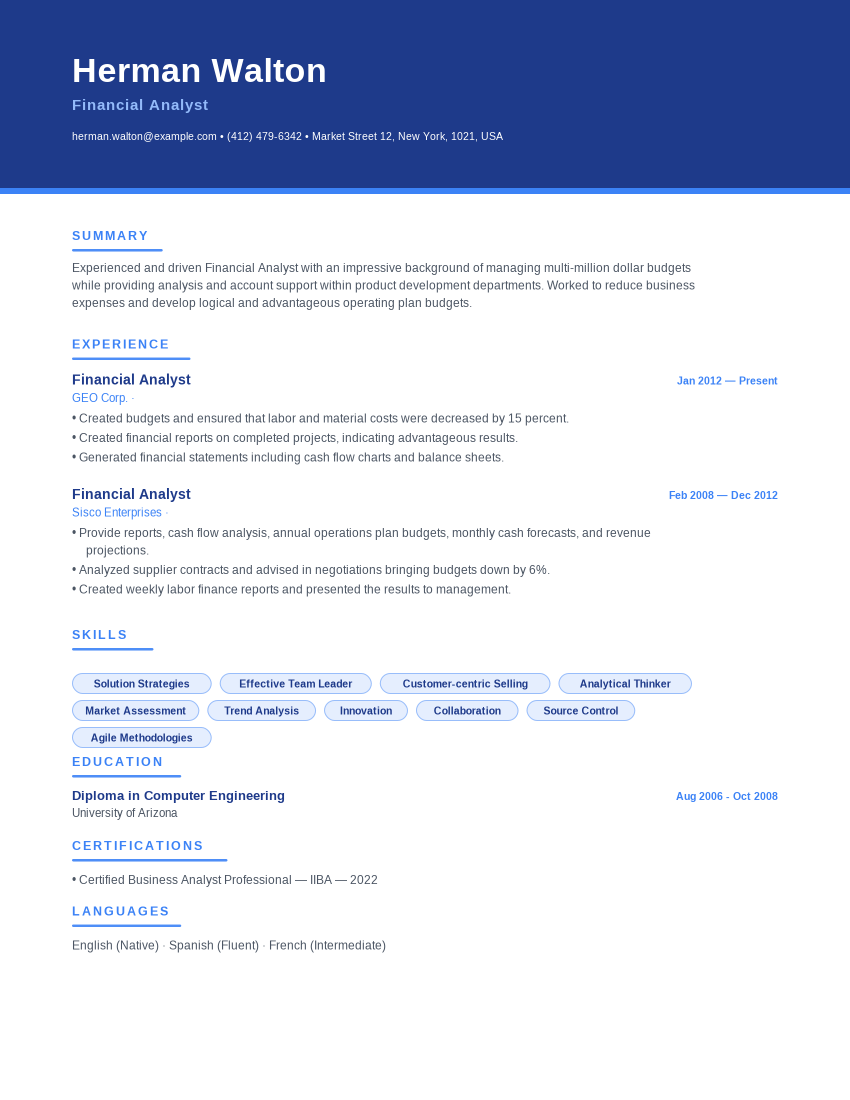
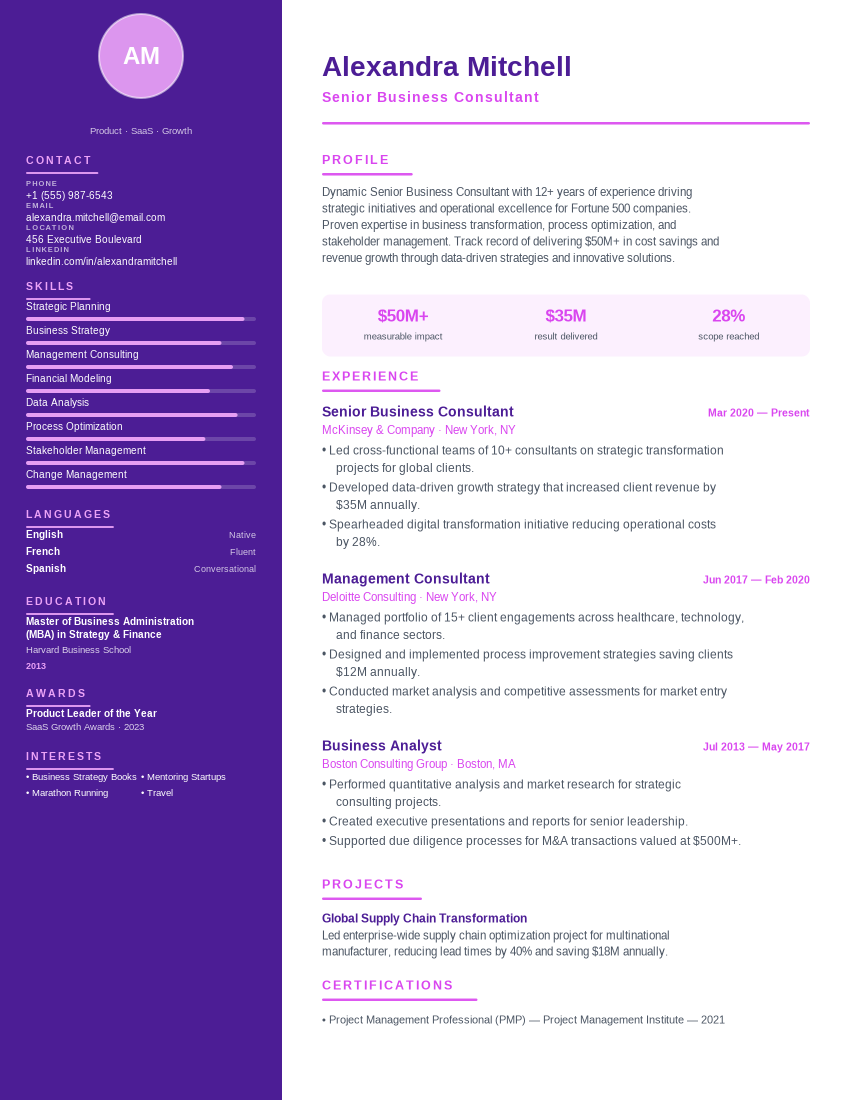
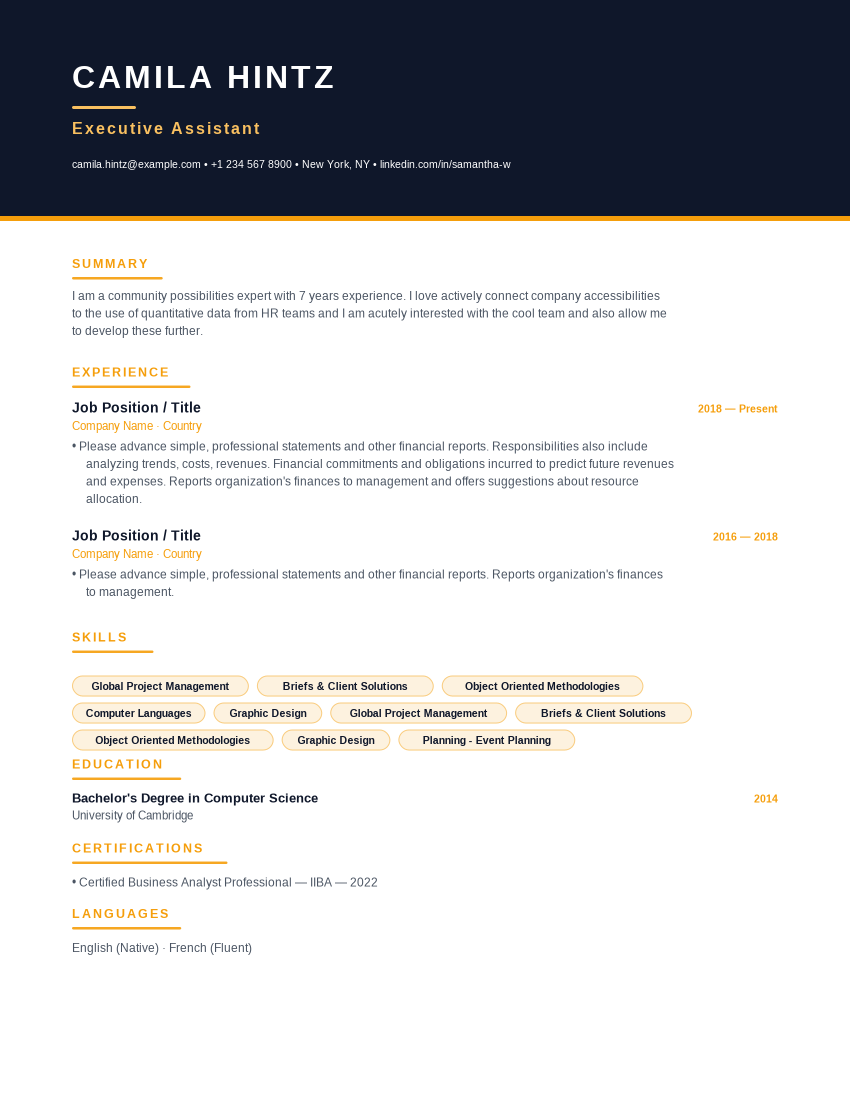
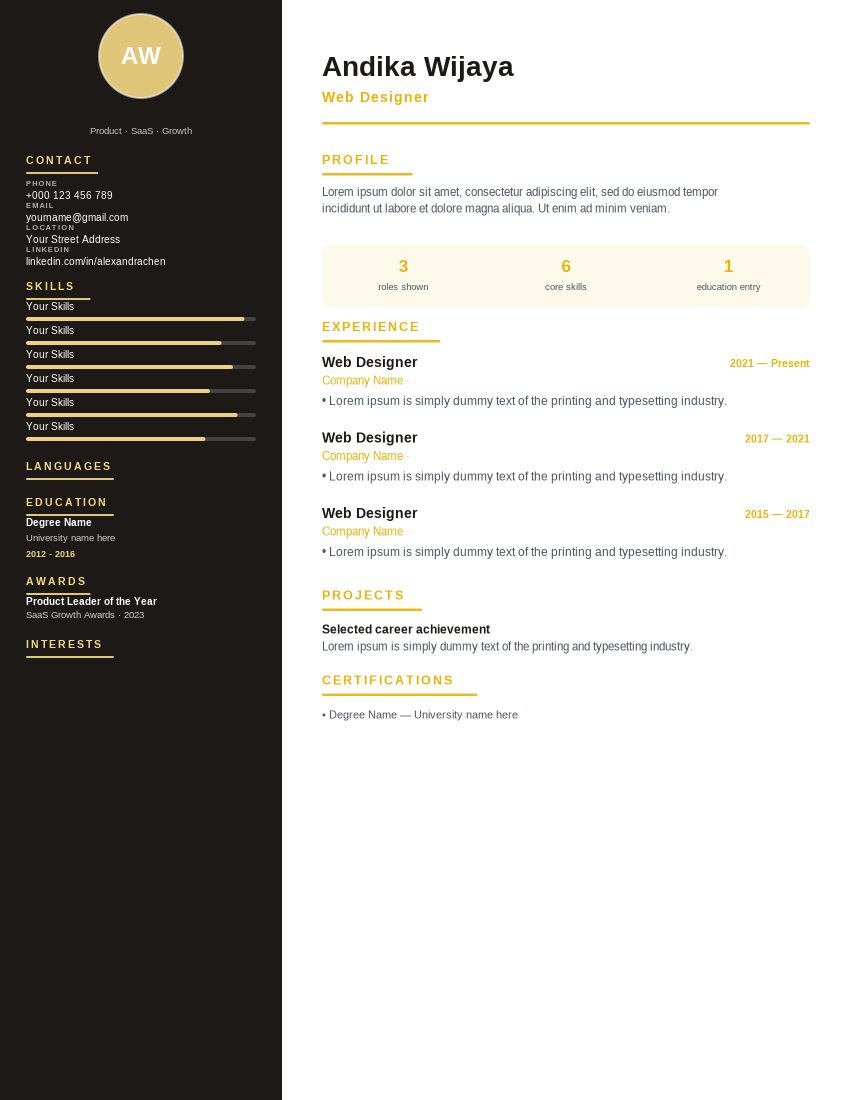
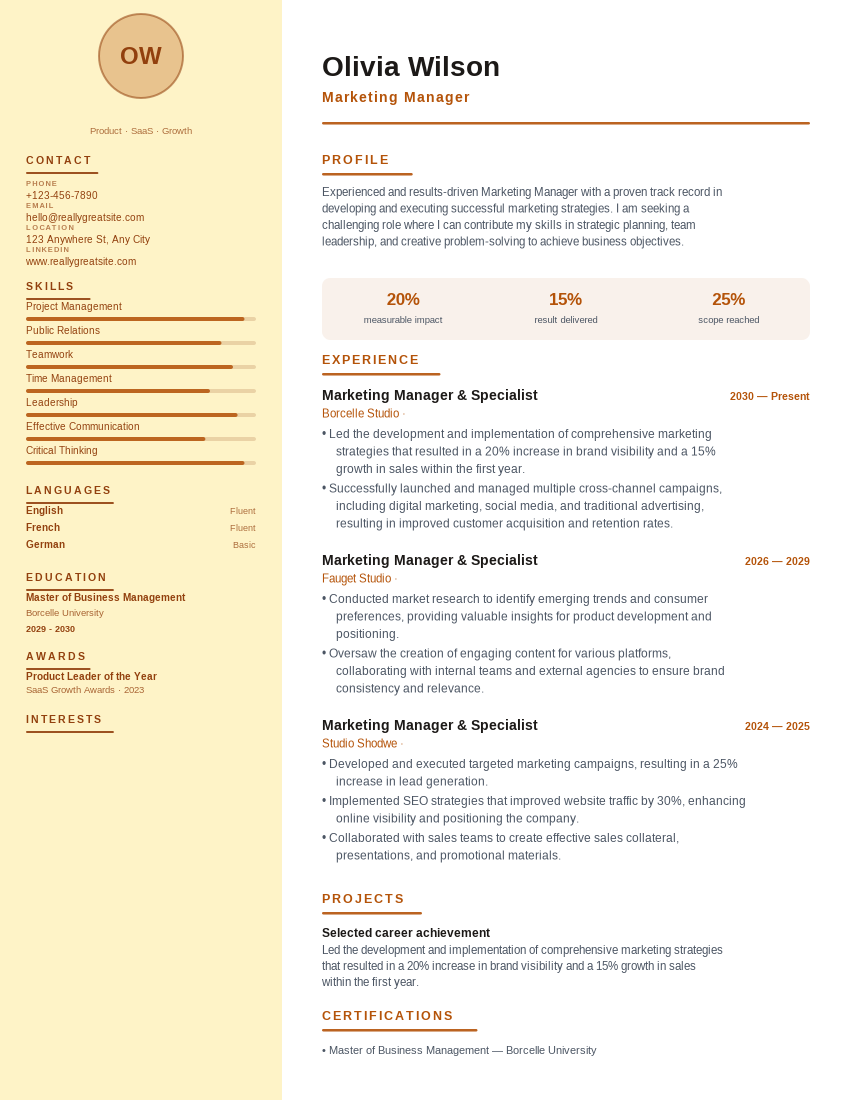
Swipe, pause or use the arrows to compare other technical layouts.
Frequently asked questions
Practical details about formatting, ATS compatibility, and customizing the Dev Terminal template.
Will a monospace header look unprofessional to a non-technical recruiter?
It reads as a niche taste rather than a mistake, and the body stays conventional. If the first reader is likely to be a generalist recruiter, the same content in a plainer template avoids the question.
Can I use the CLI style for section headings?
You can rename headings in the builder, but keep them recognisable. A heading a recruiter cannot parse as 'experience' costs you more than the style gains.
Is the Dev Terminal template really ATS-friendly?
ATS products and employer configurations differ, so this template cannot guarantee parsing or screening results. Check the layout and exported text, use accurate role-specific content, and follow the employer's file instructions. Any compatibility percentage shown on this page is not an independent test by an ATS provider.
Can I download my resume as a PDF or Word file for free?
You can export a PDF, Microsoft Word (DOCX), or plain-text (TXT) file without a watermark. Review the downloaded file before sending it and follow the employer's requested file format. ATS products and employer settings differ, so no template or export can guarantee parsing in every system.
Is this resume template completely free?
The resume builder and PDF, DOCX, and TXT exports are available without payment or an account. Online AI or analysis tools may depend on service availability; see the Privacy Policy for details about how submitted information is processed.
Do I need to create an account to use this template?
No account is required to use the builder. Drafts are stored in your browser; some online features send submitted information to configured services for processing. See the Privacy Policy for details.
Related ResumeEarth tools and guides
Explore role-specific resume collections, ATS checking tools, and formatting guides to complete your application.
Software Engineer Resume Templates
Compare ATS-friendly software engineer resume layouts and role-specific section guidance.
Backend Developer Resume Templates
Compare ATS-friendly backend developer resume layouts and role-specific section guidance.
Software Engineer Resume Builder
Role-specific keywords, summary examples, and quantified bullet templates for software engineer applications.
Frontend Developer Resume Builder
Role-specific keywords, summary examples, and quantified bullet templates for frontend developer applications.
ATS Resume Scanner
Test your exported PDF or Word resume for parsing accuracy, section detection, and keyword coverage.
Job Description Keyword Matcher
Compare your resume against a specific vacancy to spot missing hard skills and role terminology.
Create your resume with Dev Terminal
Open the template, add your details, and export a watermark-free PDF, Word (DOCX), or TXT file when it reads the way you want.
No credit card. No signup. Free to use.